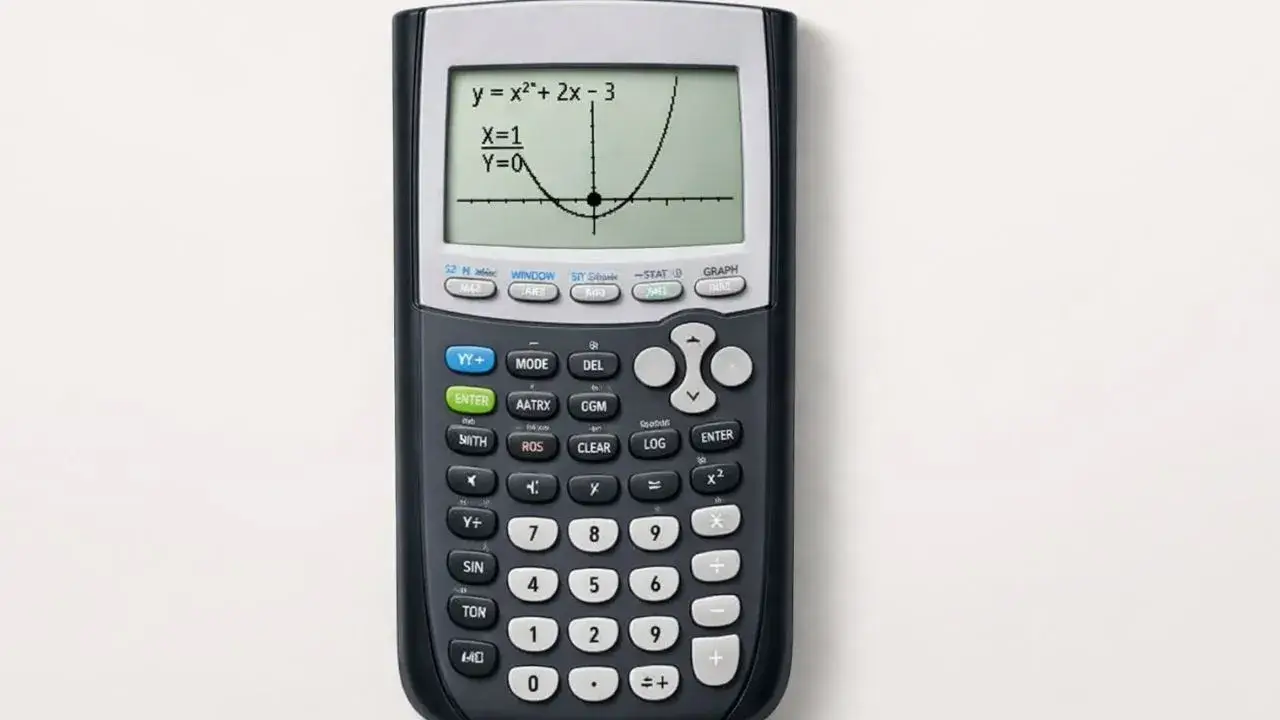
Evaluating functions is a common task in algebra and calculus, but many students find it confusing when using a TI 84 calculator. Even when the function is entered correctly, students may not know how to find the value of the function for a specific input. This often leads to guessing, incorrect answers, or unnecessary manual calculations.
This problem usually occurs because students are unsure which calculator features to use for evaluating functions. In this guide, you will learn how to evaluate functions on a TI 84 calculator online step by step, using clear methods that students and teachers can rely on.
What You Need Before Starting
Before evaluating functions, make sure the calculator is prepared correctly.
TI 84 Calculator Compatibility
This guide applies to:
- TI 84
- TI 84 Plus
- TI 84 Plus CE
All these models support function evaluation using the same menus and keys.
Required Calculator Settings
Before starting:
- Calculator must be in Function mode
- The function should be entered correctly in the Y= screen
- Old or unused equations should be cleared
These settings ensure the calculator evaluates the correct function.
Math Prerequisites
You should understand:
- What a function is
- How functions use x-values as input
- Basic algebraic expressions
No advanced math knowledge is required.
How to Use the TI-84 Calculator
The TI 84 calculator evaluates functions by substituting a specific x-value into the function and calculating the corresponding output. This can be done directly from the calculator using built-in evaluation tools. Understanding how to access these tools helps students find accurate function values quickly.
Learning this process reduces manual errors and saves time during problem solving.
Step-by-Step Solution Using TI 84
We will evaluate the function:
f(x) = 2x² − 3x + 1
at x = 4
Step 1: Enter the Function
- Press Y=
- Enter
2X^2 - 3X + 1next to Y₁ - Press ENTER
The function is now stored.
Step 2: Access the Value Calculation
- Press 2nd → TRACE
- Select 1:Value
This option allows you to evaluate the function at a specific x-value.
Step 3: Enter the x-Value
- When prompted, enter
4 - Press ENTER
The calculator displays the corresponding y-value.
Step 4: Read the Result
- The displayed value is f(4)
- This is the output of the function for the given input
Understanding this connection is important for function analysis.
Step 5: Evaluate at Different Values (Optional)
- Repeat the value calculation steps
- Enter different x-values as needed
This helps compare how the function behaves.
Common Mistakes and How to Fix Them
Mistake 1: Function Not Entered Correctly
Why it happens:
Students forget exponents or use the wrong variable key.
Fix:
Double-check the function format and use the correct keys.
Mistake 2: Using the Wrong Evaluation Option
Why it happens:
Students select the wrong calculation menu item.
Fix:
Always choose the value option for evaluating functions.
Mistake 3: Evaluating the Wrong Function
Why it happens:
Multiple equations are active.
Fix:
Ensure only the required function is turned on.
Using the Online TI-84 Tool
The same steps can be practiced using the TI 84 Calculator Tool available on this website. The online tool allows students to enter functions and evaluate them at specific x-values accurately and quickly.
This is useful for practice, homework, and classroom demonstrations without needing a physical calculator.
Evaluating functions on a TI 84 calculator becomes simple when the function is entered correctly and the proper calculation tools are used. Many mistakes happen due to incorrect input or selecting the wrong menu option. By using the value feature, students can quickly and accurately find function outputs.
- How to Enter Equations on TI 84 Calculator Correctly
- How to Find Zeros and Intercepts on TI 84 Calculator
- How to Read Graph Results on TI 84 Calculator
Yes, the calculator can evaluate functions directly using the value option.
Yes, this is a standard classroom-approved method.
Evaluating a function means finding the output value for a given input.
Errors usually occur due to incorrect function entry or invalid input values.











1 thought on “How to Evaluate Functions on TI 84 Calculator”