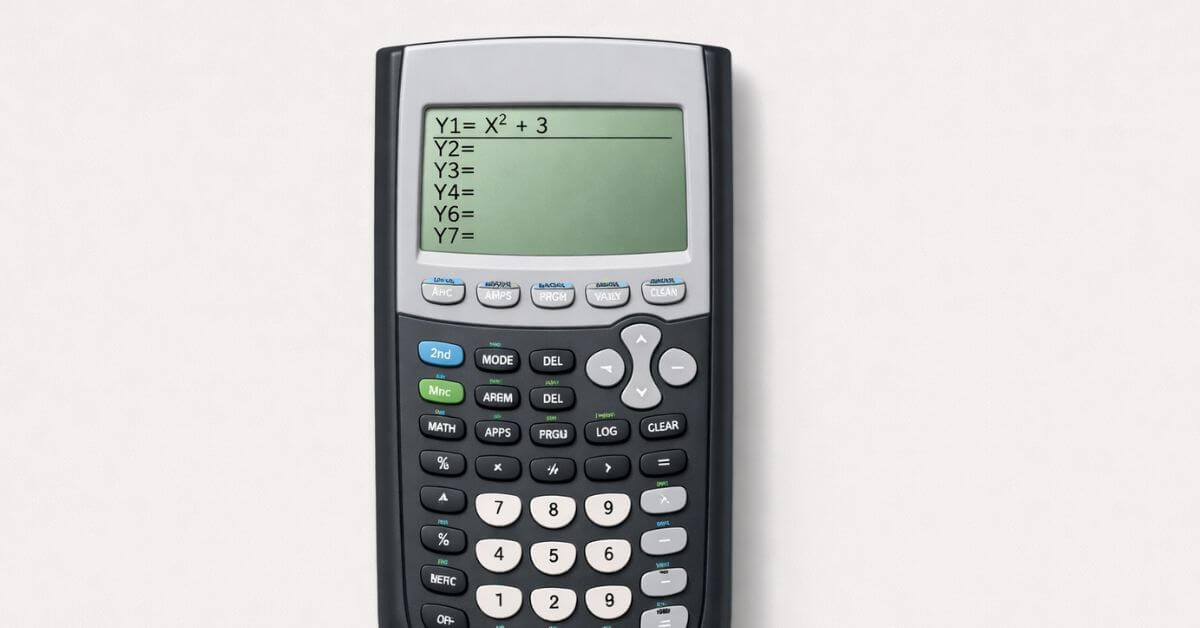
Most calculation errors on a TI-84 aren’t math errors they’re syntax errors that look like math errors. The calculator does exactly what you type, with zero interpretation of what you “meant,” which means the gap between a correct equation on paper and a correct equation on the Y= screen is entirely about knowing the right keys and structure.
Does this apply to your TI-84?
Yes, TI-84, TI-84 Plus, and TI-84 Plus CE all use the same input screen and syntax rules.
Where do equations actually get entered?
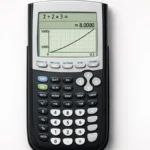
Press Y=. This opens the function entry screen with slots labeled Y₁ through Y₉ (and beyond, scrolling down). Equations typed here are what the calculator graphs, tables, and references for graph-based tools like the CALC menu. Typing an equation on the home screen instead only calculates it once it won’t graph, and it won’t be available to other functions that expect a stored equation.
Basic equation entry
- Press Y=
- Move the cursor to an empty or unused line (Y₁, Y₂, etc.)
- Use the X,T,θ,n key for the variable not ALPHA + X, which types a different stored variable that looks identical but won’t behave the same way
- Enter operators normally: +, −, × (or just adjacency, like 2X), ÷
- Press ENTER to move to the next line, or GRAPH to plot it
How do I enter fractions correctly?
Fractions are one of the most common sources of syntax errors, because the calculator reads left to right with strict order of operations it has no concept of a fraction bar spanning multiple terms unless you tell it to with parentheses.
1/2xis read as(1/2)·x, not1/(2x)- If you want the whole expression
xin the denominator, type1/(2x)explicitly - For a fraction with multiple terms in the numerator or denominator, wrap each side in parentheses:
(x+3)/(x-1), notx+3/x-1
How do I enter square roots and other roots?
Press 2nd, then x² to get the square root symbol, followed by the expression, closed with a parenthesis: √(x+4). For a cube root or higher, press MATH, scroll to option 5: ˣ√, enter the root index first, then the expression for example, typing 3 then selecting this option gives a cube root template.
How do I enter absolute value?
Press MATH, arrow over to the NUM tab, and select 1: abs(. Type the expression and close the parenthesis: abs(x-3). This is easy to miss since there’s no dedicated absolute value key on the keypad.
How do I enter a piecewise-style function?
The TI-84 doesn’t have a dedicated piecewise input mode, but you can build one using the TEST menu (inequality operators) as logical multipliers. Press 2nd, then MATH, to open TEST and access <, ≤, =, ≥, >, and ≠. Each of these evaluates to 1 (true) or 0 (false) for a given x-value, which lets you “switch” parts of an equation on or off:
Y1 = (X<0)(-X) + (X≥0)(X²)This graphs -X when X is negative and X² when X is zero or positive — effectively a two-piece function — because whichever condition is false multiplies that term by zero, removing it from the result at that x-value.
Common mistakes and how to fix them
Using ALPHA-X instead of the X,T,θ,n key. They look identical on screen but are different stored variables. Always use the dedicated key just left of the arrow keys.
Missing parentheses around fraction numerators/denominators. Wrap any multi-term numerator or denominator in parentheses, every time don’t rely on how it “looks” typed out.
Typing equations on the home screen instead of Y=. The home screen calculates once; it doesn’t store the equation for graphing, tables, or the CALC menu. If you need the graph or the table feature, the equation needs to live in Y=.
Forgetting to close a parenthesis in a nested expression. Square roots, absolute value, and multi-term fractions all use parentheses stacking several without closing each one is one of the most common causes of “ERR: SYNTAX.”
Practice equation entry without a physical calculator
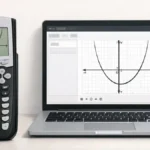
The TI-84 Calculator Tool on this site mirrors the same Y= entry layout and syntax rules, which makes it a low-stakes way to practice fraction, root, and absolute value syntax before relying on it during a timed assignment. Once an equation is entered correctly, you can move straight into graph mode to see it plotted.
FAQ
Why does my TI-84 calculate a fraction wrong even though I typed it correctly?
Almost always missing parentheses. 1/2x means (1/2)·x, not 1/(2x) wrap the full denominator in parentheses if it has more than one term.
Where do I find the absolute value function on a TI-84?
Press MATH, arrow to the NUM tab, and select 1:abs(. There’s no dedicated key for it.
Can a TI-84 graph a piecewise function?
Not with a dedicated piecewise input, but you can simulate one using the TEST menu (2nd + MATH) as logical multipliers, so each piece only “activates” for its intended x-range.
Why did my equation calculate once but won’t graph?
It was likely entered on the home screen instead of the Y= screen. Only equations stored in Y= are available for graphing, tables, and the CALC menu.
What’s the difference between the X key and typing X with ALPHA?
The X,T,θ,n key enters the calculator’s dedicated graphing variable. ALPHA + X enters a separate stored variable that looks the same on screen but won’t graph or solve the way the dedicated key does.

6 thoughts on “How to Enter Equations on TI-84 Calculator Correctly”