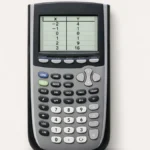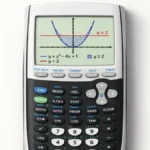
A “Memory Full” message on a TI-84 doesn’t mean anything is broken it means RAM has filled up with programs, lists, or apps you’ve accumulated over time, and the calculator needs some of that space back before it can run something new. The fix isn’t a full reset. It’s targeted deletion, and knowing exactly what’s safe to remove.
This is different from resetting your TI-84’s settings a reset restores mode defaults, while clearing memory frees up storage space. You may need one, the other, or both.
Does this apply to your TI-84?
Yes, TI-84, TI-84 Plus, and TI-84 Plus CE. The Memory Management menu is identical across all three.
Why does a TI-84 run out of memory?
Every program, custom list, picture, graph database, and app you’ve added takes up RAM. Unlike a phone or computer, a TI-84 has a small, fixed amount of it so a few semesters’ worth of accumulated programs and saved data adds up faster than people expect. Archive memory (separate, larger storage) doesn’t count toward this limit, which is exactly why moving things there instead of deleting them is often the better move.
How to clear memory on a TI-84
Step 1: Open the Memory Management menu
- Press 2nd, then + (MEM)
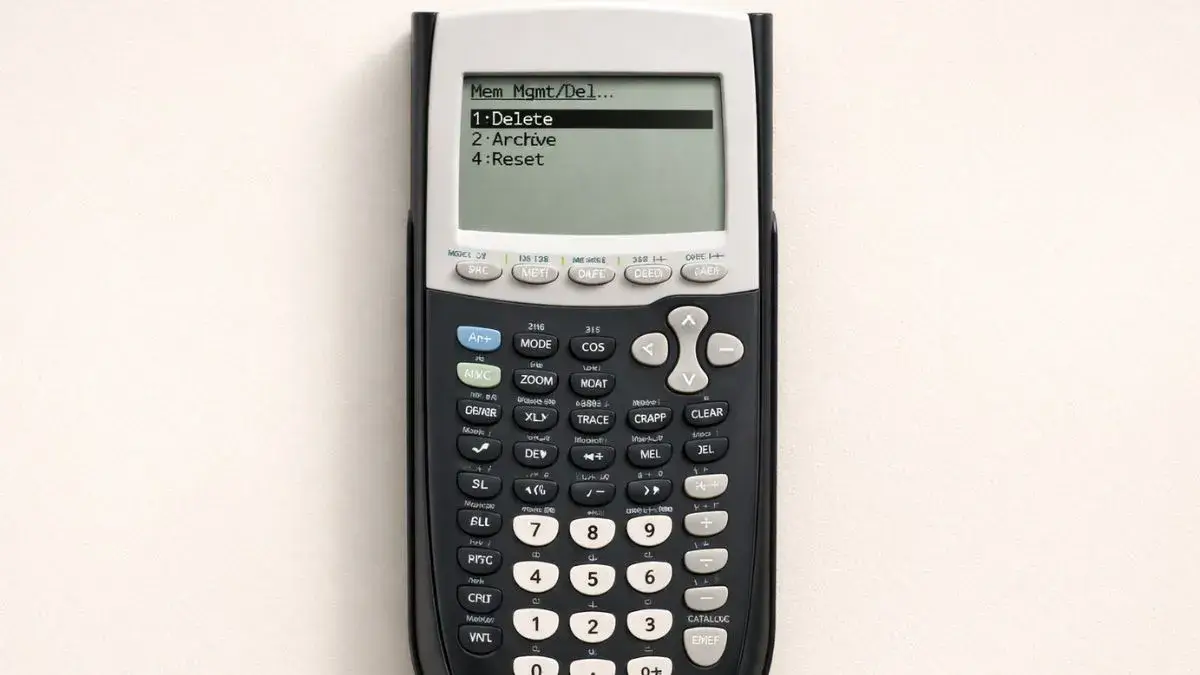
- Select 2: Mem Mgmt/Del
This opens a categorized list RAM total, Archive total, then individual categories like Real, Lists, Prgm (programs), AppVars, Apps, Pic (pictures), and GDB (graph databases).
Step 2: Check what’s actually using space
Scroll through the categories before deleting anything. It’s common to assume programs are the problem when it’s actually a handful of large lists or saved pictures from graphing that are eating the RAM.
Step 3: Delete items you don’t need
- From the Mem Mgmt/Del menu, select the category (e.g., Prgm for programs)
- Scroll to the specific item
- Press DEL
- Confirm when prompted
Only delete items you’re sure you don’t need for an active class or project there’s no undo once confirmed.
Step 4: Move items to Archive instead of deleting (when possible)
If you want to keep a program or app but free up RAM, you can move it to Archive rather than deleting it outright.
- Press 2nd, then + (MEM)
- Select 2: Mem Mgmt/Del
- Choose the category, then the specific item
- Press ENTER to toggle it between RAM and Archive (an asterisk marks archived items)
Archived items can’t be edited or run directly until moved back to RAM, but they don’t count against your RAM limit while archived.
What’s usually safe to delete?
- Old programs from a previous class or semester you’re confident you won’t reuse
- Custom lists (L1–L6 overwritten data, or additional named lists) from past assignments
- Saved pictures (Pic) from old graphing sessions
- Graph databases (GDB) you no longer reference
What you should think twice about deleting
- Apps that came pre-installed or were required for a specific class (some require reinstalling from a computer, which isn’t always possible during a test)
- Programs a teacher distributed that you can’t easily get again
- Anything currently in use for an ongoing assignment
Common mistakes when clearing memory
Deleting Apps to fix a RAM issue. Apps typically live in a separate memory pool and rarely cause a “Memory Full” RAM error. Check Prgm, Lists, and Pic first.
Confusing Archive space with RAM space. A Memory Full error tied to RAM won’t be solved by clearing Archive, and vice versa check which one the error is actually referencing under Mem Mgmt/Del before deleting anything.
Deleting without checking what’s in a list first. Lists named something generic like L1 might still hold data from an active assignment. Scroll in before deleting.
A safer way to test what memory affects
If you want to see how mode settings and memory interact without risking your actual stored programs, the TI-84 Calculator Tool on this site runs in a clean state every time, so you can compare behavior without touching your physical calculator’s data. It’s also useful for confirming a slow or error-prone calculator is a memory issue and not one of the more common input mistakes.
FAQ
What does “ERR: MEMORY” mean on a TI-84?
RAM is full and the calculator can’t complete the current operation. Open 2nd → MEM → 2:Mem Mgmt/Del to see what’s using space and delete or archive unneeded items.
Does deleting an app free up the same memory as deleting a program?
No. Apps typically use a separate memory pool from programs and lists. If you’re seeing a RAM-specific memory error, deleting apps usually won’t fix it check Prgm and Lists instead.
What’s the difference between deleting something and archiving it?
Deleting removes it permanently. Archiving moves it out of RAM into separate storage where it’s preserved but not directly usable until moved back a better option if you’re not sure you’ll need it again.
Will clearing memory delete my mode settings?
No. Clearing memory (Mem Mgmt/Del) only removes the specific items you delete. It doesn’t touch mode settings that’s a separate reset function.
Can I get back something I accidentally deleted?
No. There’s no undo for a confirmed deletion, which is why it’s worth double-checking the contents of a list or program before removing it.