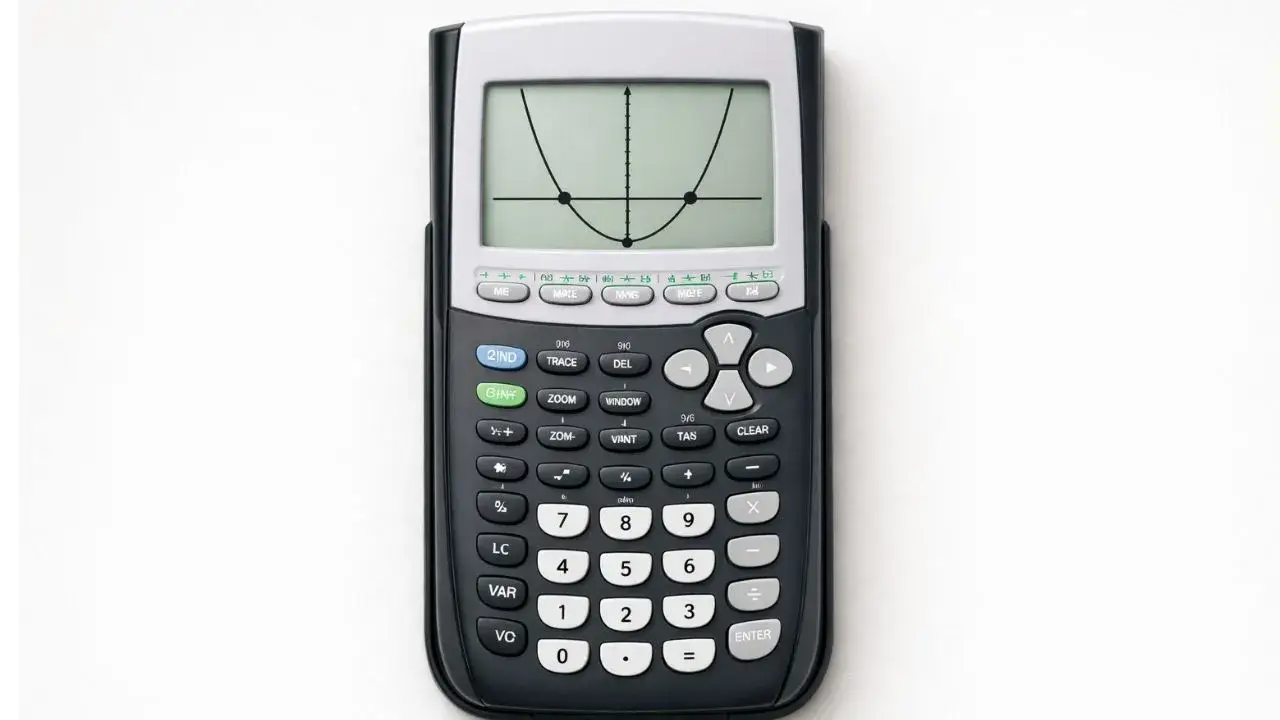
Graphing a parabola and finding where it crosses the x-axis works well when you want to see the equation visually but it’s not the only way, and it’s not the fastest when you just need the numbers. This guide covers the graphing method along with a direct algebraic method, plus what to do when a quadratic doesn’t have real solutions at all, which the graphing method alone won’t explain.
Does this apply to your TI-84?
Yes, TI-84, TI-84 Plus, and TI-84 Plus CE all support both methods below the same way.
Method 1: Graph and find the zeros
Best when you want to see the parabola’s shape, not just the solution values.
Example: solve x² − 5x + 6 = 0
- Press Y= and enter
X^2-5X+6next to Y₁ use the ^ key for the exponent, not a separate squared key sequence, to avoid syntax errors - Press GRAPH
- Press 2nd, then TRACE, and select 2: zero
- Set a left bound just before the first x-intercept, a right bound just after it, then a guess
- Repeat for the second x-intercept quadratics typically have two solutions, and it’s easy to stop after finding just one
Method 2: Use the quadratic formula directly (no graphing)
Faster when you already know a, b, and c and just want the values.
- On the home screen, store each coefficient: type the value, press STO→, then the letter (use ALPHA + the letter key), then ENTER. For x² − 5x + 6: store
1to A,-5to B,6to C - Type the formula for one solution:
(-B+√(B²-4AC))/(2A)use 2nd, then x², for the square root - Press ENTER for the first solution
- Change the
+to-in the same expression and press ENTER again for the second solution
This gives exact values without needing to graph or visually locate anything, and it works even for equations where the solutions are irrational or fall outside a typical graph window.
What if my quadratic doesn’t have real solutions?
If the graph never crosses the x-axis, or Method 2 produces an error under the square root, the equation has no real solutions the discriminant (b² − 4ac) is negative. This is normal, not a calculator malfunction.
To see the complex solutions instead of an error:
- Press MODE and change the complex number row from Real to a+bi covered in full in the mode settings guide
- Re-run the quadratic formula calculation from Method 2
The result will now display as a complex number (like 2+1.41i) instead of throwing “ERR: NONREAL ANS.”
How do I find the vertex instead of the solutions?
The vertex isn’t the same as the x-intercepts it’s the parabola’s turning point. The dedicated vertex guide covers this using the CALC menu’s minimum or maximum option, depending on whether the parabola opens up or down.
Common mistakes and how to fix them
Using the wrong exponent syntax for the squared term. X^2 is correct; typos here (like forgetting the caret) produce a linear equation instead of a quadratic, which graphs as a straight line, not a parabola.
Only finding one solution. Quadratics generally have two x-intercepts. After finding the first with the zero tool, repeat the process on the other side of the vertex for the second.
Assuming a blank graph means no solution exists. It might just mean the parabola is outside the current window a wide, narrow, or shifted parabola can easily fall outside the default -10 to 10 range. Try Method 2 (the formula) to check before concluding there’s no real solution.
Getting ERR: NONREAL ANS unexpectedly. This means the discriminant is negative and the calculator is in Real mode, which doesn’t allow complex results by default. Switch to a+bi mode if your course covers complex solutions.
Practice both methods
The TI-84 Calculator Tool on this site supports both the graphing and direct-calculation approaches, which makes it useful for double-checking a quadratic formula answer against the graph’s actual x-intercepts.
FAQ
What’s the fastest way to solve a quadratic equation on a TI-84 without graphing?
Store the coefficients a, b, and c as variables, then type the quadratic formula directly on the home screen using each variable this gives exact solutions without needing to graph anything.
Why does my TI-84 show ERR: NONREAL ANS when solving a quadratic?
The discriminant (b² − 4ac) is negative, meaning the equation has no real solutions. Switch MODE to a+bi to see the complex solutions instead of an error.
How many solutions does a quadratic equation usually have?
Up to two real solutions, one repeated solution (when the discriminant is exactly zero), or none (when the discriminant is negative and only complex solutions exist).
Why doesn’t my parabola show any x-intercepts on the graph?
Either the equation has no real solutions (check the discriminant), or the parabola exists outside your current graph window try the quadratic formula method to confirm which one it is.
Is the vertex the same as a solution to the equation?
No. The vertex is the parabola’s highest or lowest point, not necessarily on the x-axis. The x-intercepts (solutions) and the vertex are found using different CALC menu tools.











1 thought on “How to Solve Quadratic Equations on TI-84 Calculator”