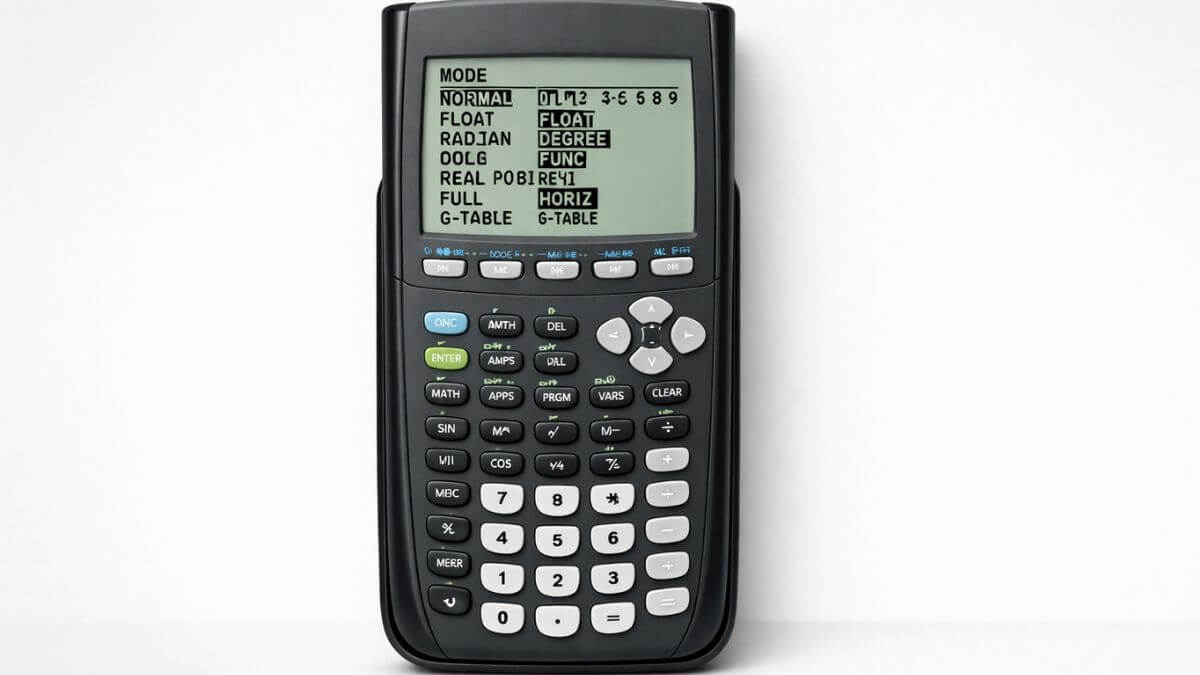
The MODE screen is the most underrated menu on a TI-84. It’s one button press, eight or nine rows of settings, and it quietly controls how every single calculation and graph behaves which means it’s also the first place to check anytime results look wrong, even when the equation you typed was correct.
Most guides only cover three of these settings. Here’s the full picture, since a setting you’ve never touched can still be the one causing a problem.
Does this apply to your TI-84?
Yes, TI-84, TI-84 Plus, and TI-84 Plus CE all share the same mode rows, though the CE’s newer OS adds a couple of extra options (language and clock) that older models don’t have.
How do I open the MODE screen?
Press MODE. You’ll see a grid of settings, each with a highlighted option showing the current selection. Use the arrow keys to move between rows, and ENTER to select an option nothing changes until you press ENTER on a highlighted choice.
What does each TI-84 mode setting actually control?
Normal / Sci / Eng number display format
Controls how numeric answers are displayed. Normal shows standard decimals. Sci shows scientific notation (like 2E5 for 200,000) for every result, even small ones. Eng is similar but restricts exponents to multiples of 3, which lines up with engineering units (kilo, mega, etc.).
Most schoolwork uses Normal. If you’re getting oddly formatted answers, this is the first row to check.
Float / 0123456789 decimal places
Controls how many digits appear after the decimal point. Float shows as many digits as the calculator computes (up to its display limit). Selecting a number (0 through 9) fixes the display to exactly that many decimal places, rounding everything to fit which can make a correct answer look different from what you expect if you forget it’s set.
Radian / Degree angle mode
Controls how the calculator interprets and displays angles in trig functions. This is the single most common cause of wrong-looking answers on the whole calculator. Most school math uses Degree; higher-level courses (calculus, physics) often require Radian. Check your course’s expectations, not just what “seems right.”
Func / Par / Pol / Seq graphing mode
Controls what kind of equation the calculator expects on the Y= screen.
- Func standard y = f(x) equations, used for the vast majority of algebra and precalculus work
- Par parametric equations, defined by a separate variable (usually T)
- Pol polar equations, using r and θ
- Seq sequences, used for recursive or explicit sequence formulas
If you’re trying to graph a normal function and nothing works right, confirm this is set to Func it’s easy to bump into Par or Pol by scrolling past it accidentally.
Connected / Dot graph rendering style
Controls whether the calculator draws a continuous line between plotted points (Connected) or shows individual dots without connecting them (Dot). Dot mode is useful for functions with breaks or asymptotes, where a connected line would misleadingly draw a vertical segment across the gap.
Sequential / Simul multi-equation plotting order
When you have more than one equation active in Y=, Sequential graphs them one at a time, finishing the first before starting the second. Simul graphs all active equations at the same time. This rarely causes visible problems, but Simul can be useful for comparing how two functions grow relative to each other in real time.
Real / a+bi / re^θi complex number mode
Controls how the calculator handles operations that produce complex (imaginary) results, like the square root of a negative number. Real mode returns an error for these instead of a complex answer which is correct for most algebra classes that haven’t covered imaginary numbers yet. a+bi and re^θi display complex results in rectangular or polar form respectively, needed for precalculus and beyond.
If you’re getting an unexpected “ERR: NONREAL ANS,” this is the row to check it usually just means Real mode correctly caught something the problem didn’t intend to produce a complex number.
Full / Horiz / G-T screen layout
Controls how the screen splits between the graph and other views. Full uses the entire screen for one view at a time. Horiz splits the screen horizontally (useful for viewing a graph and its equation simultaneously). G-T shows a graph and a table side by side.
Newer OS additions: language and clock
On TI-84 Plus CE models with a recent OS update, you may also see language selection and clock settings at the bottom of the MODE screen. These don’t affect calculations, but the clock setting affects timestamps if the calculator logs anything, and language changes menu text worth confirming it’s set to English if a menu suddenly looks unfamiliar after a reset or software update.
What’s the fastest way to check if a mode setting is causing a problem?
Open MODE and scan top to bottom before troubleshooting anything else most issues trace back to Radian/Degree, Float/decimal places, or Func/Par/Pol/Seq being set differently than you expect. If a full reset seems necessary, use the Defaults option, not a full RAM reset, so you don’t lose stored equations while fixing mode settings.
Practice safely before it matters
The TI-84 Calculator Tool on this site starts in default mode every time, which makes it a good place to deliberately change a setting and see exactly what it does to a calculation or graph without risking anything on your actual calculator before an exam.
FAQ
What’s the difference between Degree and Radian mode?
They control how the calculator interprets angle values in trig functions. Degree treats input as degrees (0–360); Radian treats it as radians (0–2π). Using the wrong one produces a technically correct calculation with the wrong real-world answer.
Why does my TI-84 show ERR: NONREAL ANS?
The calculator is in Real mode and the calculation produced a complex (imaginary) result, which Real mode doesn’t allow. If your course covers complex numbers, switch to a+bi or re^θi mode under MODE.
What does Float mean on the MODE screen?
Float means the calculator shows as many decimal digits as it computes, rather than rounding to a fixed number. Selecting a specific digit (0–9) instead fixes the decimal places shown.
Do I need to change modes for every new problem?
No, only when the type of problem changes (like switching from a standard equation to a parametric one, or from real numbers to complex numbers). Most students set modes once per topic, not once per problem.
Why does my graph look like connected dots are missing sections?
That’s Dot mode, which draws individual points without connecting them useful for functions with breaks, but can look incomplete if you were expecting a smooth curve. Switch to Connected under MODE if that’s not what you intended.











1 thought on “Understanding TI-84 Calculator Modes and Functions”