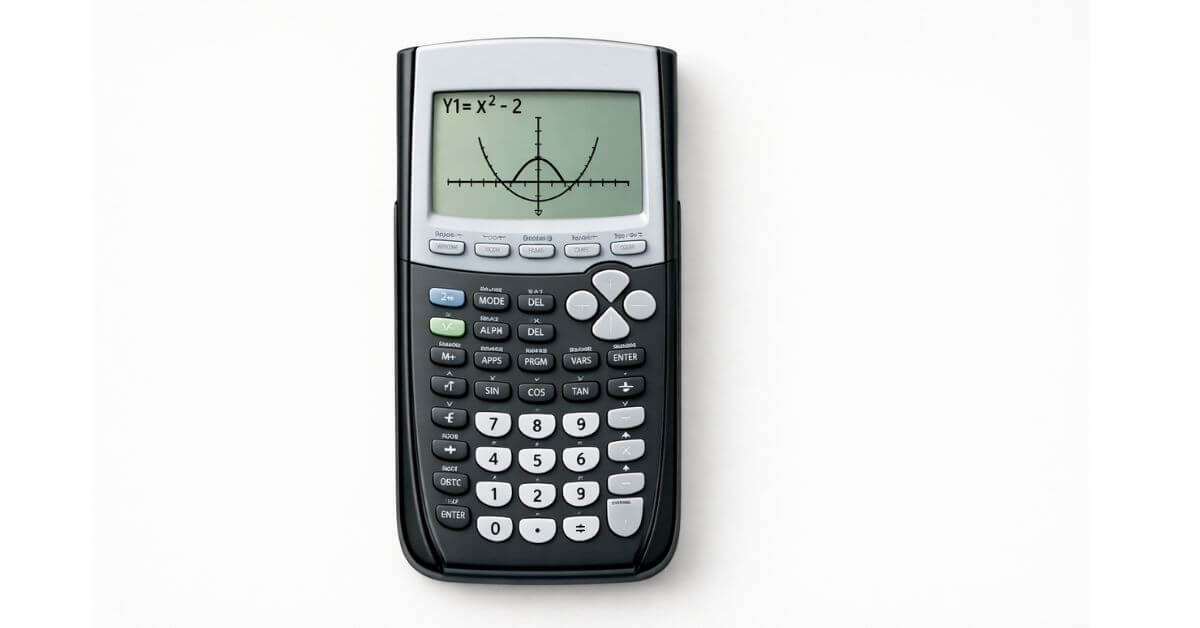
Switching from a physical TI-84 to an online version trips people up for a specific reason: the buttons are in the same places, but you’re now choosing between clicking with a mouse and typing on a keyboard, and it’s not always obvious which one the tool expects for a given input. Once that clicks, using it is almost identical to the physical calculator.
Does an online TI-84 tool work the same as the physical calculator?
For the core functions entering equations, calculating, graphing yes, closely. It won’t replicate every physical detail (see the full online vs. physical comparison if you’re deciding which to rely on for an exam), but for practice and homework, the workflow matches.
How do I enter an equation on the online TI-84?
You can usually do this two ways:
- Click the on-screen buttons, exactly like the physical calculator’s keypad useful if you’re still building familiarity with where things are
- Type directly on your keyboard, using standard symbols (
^for exponents,/for fractions, parentheses as needed) faster once you’re comfortable with the syntax
Both methods produce the same input. Mixing them (clicking some buttons, typing others) works fine too.
How do I graph a function using the online calculator?
- Enter your equation in the equation entry area, the same way you would on the physical Y= screen
- Switch to the graph view
- The graph renders using the default window if your function doesn’t appear, the values are likely outside that range, the same issue that affects the physical calculator
- Adjust the window settings if needed to bring the relevant part of the graph into view
How do I switch between calculating and graphing?
Look for the view or mode toggle near the equation area this switches the same equation between a plain numeric result and its graph, without needing to re-enter anything. This mirrors how the physical calculator separates the home screen from the graph screen.
Does the online calculator save my work?
No, and that’s intentional. Each session starts in a clean default state, with no leftover stored variables, Stat Plots, or mode changes carried over from a previous visit. That’s actually useful for troubleshooting: if you’re not sure whether a wrong answer is caused by your equation or a leftover setting, testing it fresh online rules out the second possibility immediately.
If you need a persistent, exact software replica of your physical calculator that keeps your data, that’s a different product Texas Instruments sells its own official online calculator separately, which is covered in the online vs. physical comparison.
Common mistakes when using an online TI-84
Typing the wrong exponent syntax. Use ^ for powers (like x^2), and wrap the exponent in parentheses if it’s more than a single character (x^(2+n), not x^2+n, if you mean the whole thing as the exponent).
Assuming settings carry over between visits. Since each session resets, if you changed the angle mode or window last time, it won’t still be set that way now. Check MODE before assuming a setting from an earlier session is still active.
Confusing this with a full replica for exam practice. A browser-based tool is excellent for practicing math and calculator logic. It’s not what you’ll have in front of you on a proctored exam exam calculator rules require the physical device.
Try it now
The TI-84 Calculator Tool on this site works on desktop, tablet, and phone browsers with no download or account required open it, enter an equation, and switch to the graph view to see it plotted.
FAQ
Do I need to download anything to use a TI-84 calculator online?
No. A browser-based TI-84 tool runs directly in your browser on any device desktop, tablet, or phone with nothing to install.
Can I type equations with my keyboard instead of clicking buttons?
Yes, most online TI-84 tools accept direct keyboard input using standard math symbols, in addition to clickable on-screen buttons.
Why did my graph settings reset since my last visit?
Online tools typically don’t save session data between visits — mode settings, stored variables, and window adjustments reset each time you open it. This is by design, so every session starts clean.
Is an online TI-84 the same as buying the physical calculator?
For practicing equations and graphing, it behaves very similarly. It isn’t accepted on standardized exams, and free browser tools aren’t the same product as Texas Instruments’ own official paid online calculator.
Why is my equation graphing incorrectly online?
Check your exponent syntax first a missing parenthesis around a multi-character exponent is the most common cause then confirm the graph window includes the range where your function’s values actually fall.











4 thoughts on “How to Use TI-84 Calculator Online for Math Problems”