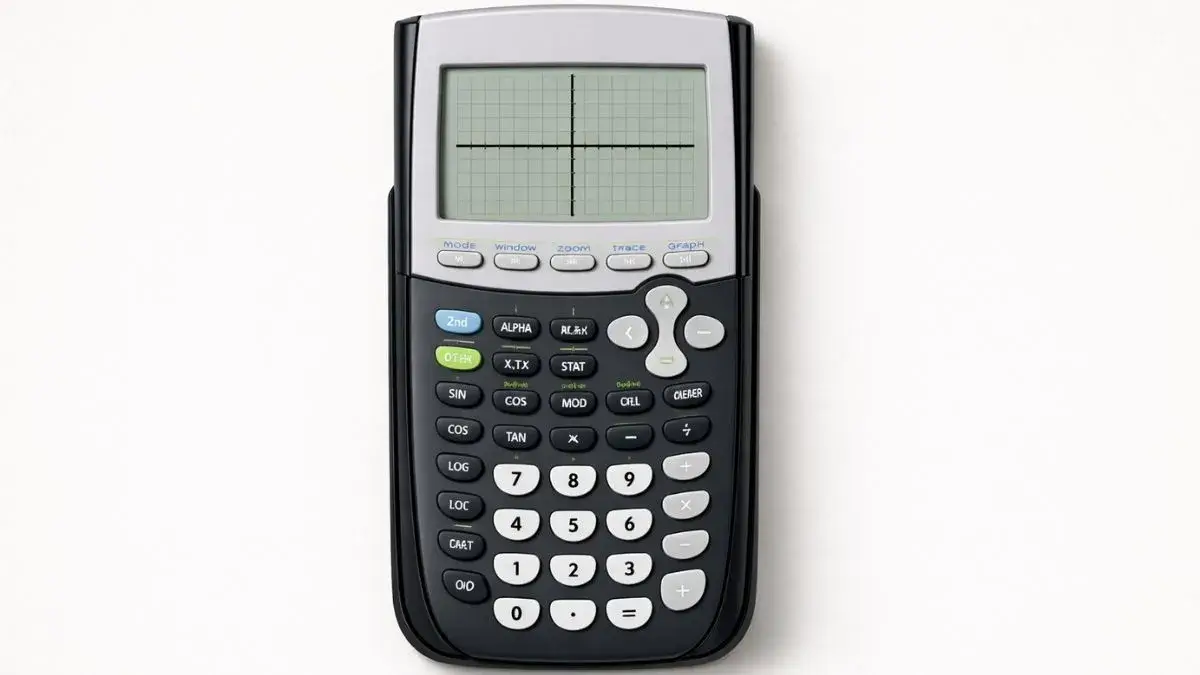
One of the most common problems students face is when the TI 84 calculator does not display a graph after entering an equation. You press the GRAPH button, but nothing appears on the screen. This can be frustrating, especially during homework or exams.
In most cases, the calculator is working properly. The issue usually comes from incorrect graph window settings, wrong mode configuration, or equation entry mistakes. In this guide, you will learn why your TI 84 calculator is not graphing and how to fix it step by step.
What You Need Before Starting
Before troubleshooting, confirm the basics.
TI 84 Calculator Compatibility
These solutions apply to:
- TI 84
- TI 84 Plus
- TI 84 Plus CE
All models follow the same graphing process.
Quick Setup Checklist
Before assuming a problem, check:
- Is the equation entered in the Y= screen?
- Is the calculator in Function mode?
- Is the graph window set properly?
- Are unwanted equations turned off?
Most graphing issues are solved by reviewing these settings.
How to Use the TI-84 Calculator for Graphing
The TI 84 graphing calculator converts equations entered in the Y= screen into visual graphs. If the calculator does not display a graph, it usually means:
- The equation is not visible in the current window range
- The equation was entered incorrectly
- The calculator is in the wrong graphing mode
Understanding this workflow makes troubleshooting easier.
Common Reasons Your TI 84 Is Not Graphing
Graph Window Range Is Incorrect
Problem:
You press GRAPH but see a blank screen.
Cause:
The graph exists outside the visible window range.
Solution:
- Press ZOOM
- Select 6:ZStandard
This resets the graph window to default values.
Equation Is Turned Off
Problem:
No graph appears even though the equation is entered.
Cause:
The equation is not activated.
Solution:
- Press Y=
- Make sure the equal sign next to the equation is highlighted
- If not, move the cursor to it and press ENTER
Calculator Is Not in Function Mode
Problem:
Graph behaves unexpectedly or does not appear.
Cause:
Calculator is set to Polar or Parametric mode.
Solution:
- Press MODE
- Select Func
- Press ENTER
- Press CLEAR
Equation Entered Incorrectly
Problem:
Graph looks strange or does not show correctly.
Cause:
Missing exponent, parentheses, or incorrect variable key.
Solution:
- Re-enter the equation carefully
- Use parentheses when needed
- Use the correct variable key
Multiple Equations Overlapping
Problem:
Graph looks confusing or hidden.
Cause:
Several equations are active at once.
Solution:
- Press Y=
- Turn off unused equations
Memory or Settings Issue
Problem:
Calculator behaves unpredictably.
Cause:
Stored data conflicts or incorrect settings.
Solution:
- Reset graph window
- Clear unnecessary stored data
- Reset mode settings if needed
Using the Online TI-84 Tool
If your physical calculator continues to have issues, you can test the equation using the TI 84 Calculator Tool available on this website.
The online tool allows you to:
- Enter equations fresh
- Graph without stored memory conflicts
- Test graph window adjustments
- Compare results
When your TI 84 calculator is not graphing, the issue is usually related to window settings, mode configuration, or equation entry errors. Resetting the graph window and checking function mode solve most problems quickly.
- How to Adjust Graph Window on TI 84 Calculator
- How to Enter Equations on TI 84 Calculator Correctly
- Why TI 84 Calculator Shows Wrong Answers
Yes, resetting window or mode settings often resolves issues.
Usually not. Most problems are caused by settings.
The equation may be turned off in the Y= screen.
The graph window range is likely incorrect.










