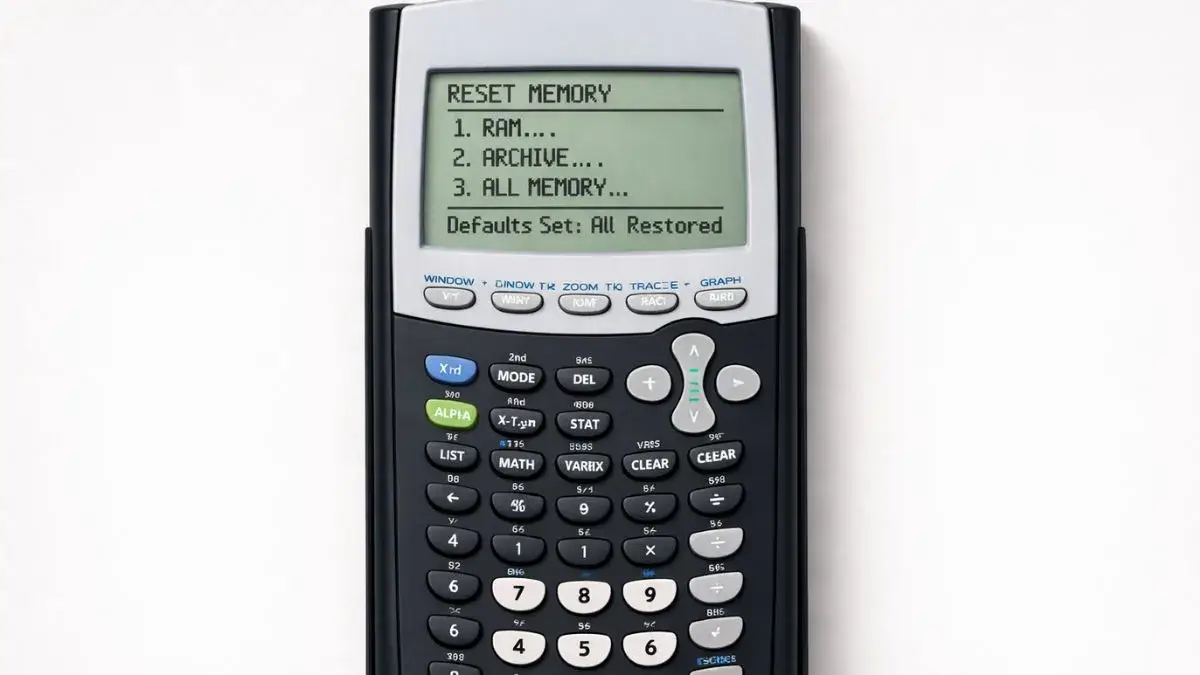
Many students experience unexpected errors on their TI 84 calculator. The graph may not appear correctly, answers may look unusual, or calculations may display in the wrong format. In most cases, the issue is not the equation itself but incorrect calculator settings.
Resetting the TI 84 calculator to its default settings can solve many common graphing calculator problems. However, students often hesitate because they are unsure what will be erased or changed. In this guide, you will learn how to reset TI 84 calculator settings safely and correctly.
What You Need Before Starting
Before performing a reset, confirm the following:
TI 84 Calculator Compatibility
This method works for:
- TI 84
- TI 84 Plus
- TI 84 Plus CE
The reset process is nearly identical across models.
Important Reminder Before Resetting
Resetting may:
- Clear stored equations
- Remove custom graph window settings
- Erase stored data (depending on reset type)
If you need important data, consider writing it down first.
How to Use the TI-84 Calculator Reset Options
The TI 84 graphing calculator offers multiple reset options. Understanding the difference helps you choose the correct one.
There are three common reset types:
- Reset All (full restore)
- Reset Mode settings only
- Reset Graph Window only
Most students only need to reset modes or graph window settings.
Step-by-Step: How to Reset TI 84 Calculator Settings
Method 1: Reset Mode Settings (Most Common Fix)
Use this when answers appear incorrect due to degree/radian issues.
- Press 2nd
- Press + (MEM)
- Select 7:Reset
- Choose 1:All RAM
- Select 2:Reset
This restores default mode settings.
Method 2: Reset Graph Window Only
Use this when graphs are not visible.
- Press ZOOM
- Select 6:ZStandard
This resets the graph window to standard viewing range.
Method 3: Reset All Calculator Settings
Use this only if major errors continue.
- Press 2nd
- Press + (MEM)
- Select 7:Reset
- Choose 1:All RAM
- Confirm reset
This clears stored settings and returns the calculator to factory defaults.
Common Problems Fixed by Resetting
Resetting helps resolve:
- Graph not appearing
- Incorrect trigonometry answers (degree/radian issue)
- Scientific notation display problems
- Strange graph scaling
- Calculation errors caused by wrong mode
Most classroom issues are fixed by restoring default settings.
Common Mistakes and How to Avoid Them
• Resetting unnecessarily
- Cause: Minor input error mistaken for setting issue
- Fix: Check equation entry first
• Accidentally clearing important data
- Cause: Using full reset without backup
- Fix: Only reset modes or window when possible
• Forgetting to re-enter equations
- Cause: Full RAM reset clears equations
- Fix: Re-enter required functions after reset
Using the Online TI-84 Tool
If you are unsure about resetting your physical calculator, you can practice using the TI 84 Calculator Tool available on this website.
The online version allows you to:
- Restore default graph settings instantly
- Test equations without affecting stored data
- Practice mode adjustments safely
This is useful for students who want to experiment without losing work.
Resetting TI 84 calculator settings is an effective way to fix common graphing calculator problems. Most issues arise from incorrect mode settings or graph window configuration rather than math mistakes. By choosing the appropriate reset option, students can quickly restore default settings and continue working accurately.











2 thoughts on “How to Reset TI 84 Calculator Settings Safely”