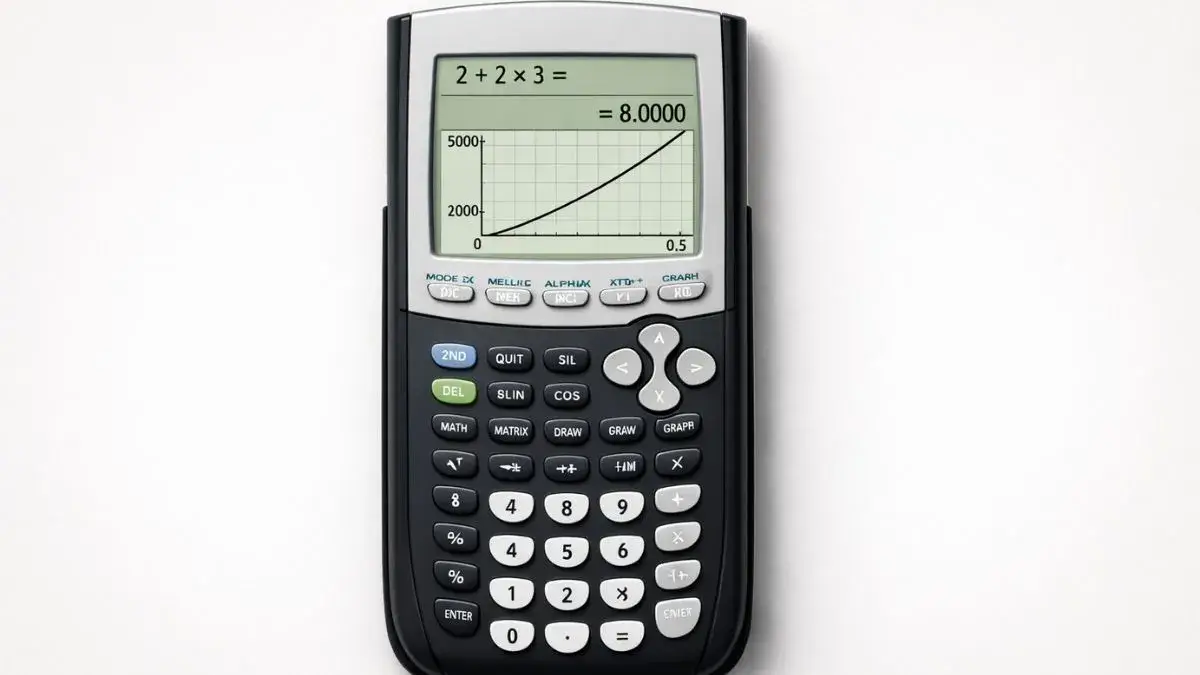
Many students assume their TI 84 calculator is malfunctioning when answers do not match textbook solutions. In most cases, the calculator is working correctly, but a setting or input mistake is causing unexpected results.
Wrong answers on a TI 84 graphing calculator usually happen because of incorrect mode settings, equation formatting errors, or graph window problems. Understanding these causes helps students quickly correct the issue without unnecessary resets.
What You Need Before Starting
Before troubleshooting, check the basics.
TI 84 Calculator Compatibility
These solutions apply to:
- TI 84
- TI 84 Plus
- TI 84 Plus CE
All models share similar settings and menus.
Quick Checklist
Before assuming an error, confirm:
- Correct angle mode is selected
- Equation is typed correctly
- Graph window settings are appropriate
- No extra equations are active
Most problems are resolved by reviewing these areas.
How to Use the TI-84 Calculator Correctly
The TI 84 calculator follows exact mathematical rules. If the input is slightly incorrect, the output will also be incorrect. The calculator does not “guess” what you meant.
Correct usage requires:
- Proper parentheses
- Correct variable key usage
- Accurate mode settings
- Clear graph configuration
Small input mistakes often create large differences in results.
Most Common Reasons for Wrong Answers
Degree vs Radian Mode Error
Problem:
Trigonometry answers look incorrect.
Cause:
Calculator is set to Radian instead of Degree (or vice versa).
How to Fix:
- Press MODE
- Select Degree (for most school math)
- Press ENTER
- Press CLEAR
This resolves most trig-related issues.
Missing Parentheses in Expressions
Problem:
Calculation results do not match manual work.
Cause:
Calculator follows order of operations strictly.
How to Fix:
- Use parentheses around grouped expressions
- Re-enter the equation carefully
Example:
Type (2+3)^2 instead of 2+3^2
Graph Window Is Incorrect
Problem:
Graph looks wrong or solution seems missing.
Cause:
Viewing range does not include important parts of the graph.
How to Fix:
- Press ZOOM
- Select 6:ZStandard
Or adjust Xmin, Xmax, Ymin, and Ymax manually.
Multiple Equations Active
Problem:
Graph appears confusing or incorrect.
Cause:
Old equations are still turned on.
How to Fix:
- Press Y=
- Turn off unused equations
Calculator in Wrong Mode
Problem:
Fractions appear as decimals or vice versa.
Cause:
Display mode is set differently.
How to Fix:
- Press MODE
- Select appropriate display option
- Press ENTER
Stored Data Causing Conflicts
Problem:
Unexpected results or memory warnings.
Cause:
Old stored data interfering.
How to Fix:
- Delete unnecessary lists or programs
- Reset mode settings if required
Using the Online TI-84 Tool
If you want to confirm whether the issue is a settings problem, you can test the same equation using the TI 84 Calculator Tool available on this website.
The online tool allows you to:
- Enter equations in a clean environment
- Test graph behavior
- Compare results
- Avoid stored memory conflicts
When a TI 84 calculator shows wrong answers, the cause is almost always a settings or input issue rather than a hardware problem. Checking angle mode, equation formatting, and graph window configuration resolves most errors quickly.
- Common TI 84 Calculator Mistakes and Fixes
- How to Reset TI 84 Calculator Settings Safely
- How to Adjust Graph Window on TI 84 Calculator
Usually not. Most issues are caused by settings or input errors.
No. First check mode settings, equation format, and graph window.
Check whether the calculator is in Degree or Radian mode.
The graph window settings may need adjustment.










