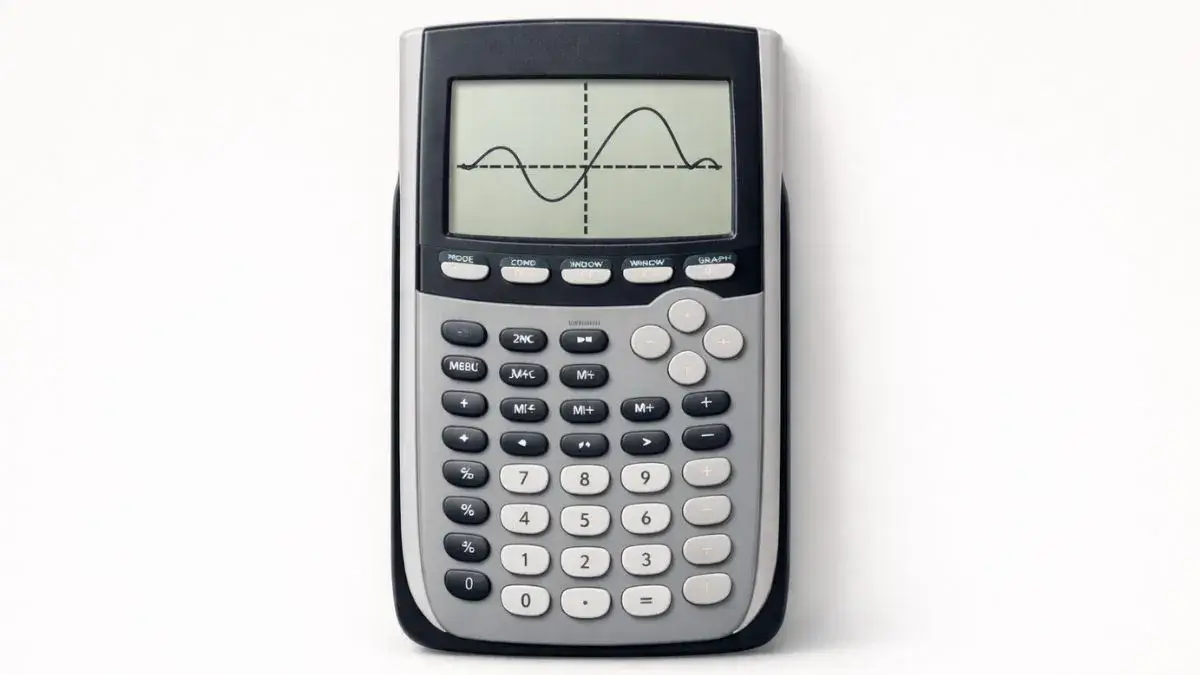
Many students can successfully graph an equation on a TI 84 calculator but struggle when it comes to understanding what the graph actually shows. The calculator displays curves, lines, and points, yet students may not know how to interpret these visuals correctly. This often leads to confusion about solutions, intercepts, and the meaning of graph shapes.
This problem occurs because graph interpretation is a separate skill from graph creation. In this guide, you will learn how to read graph results on a TI 84 calculator step by step, helping students and teachers understand values, intercepts, and graph behavior clearly.
What You Need Before Starting
Before reading graph results, ensure the calculator is set up correctly.
TI 84 Calculator Compatibility
This guide works for:
- TI 84
- TI 84 Plus
- TI 84 Plus CE
All these models display graphs and trace results in the same way.
Required Calculator Settings
Before interpreting graphs:
- Calculator must be in Function mode
- Graph window should be set properly
- Only relevant equations should be active
Correct settings ensure graphs are not misleading.
Math Prerequisites
You should understand:
- Coordinate plane basics
- Meaning of x-axis and y-axis
- Simple linear and quadratic equations
Advanced graph theory is not required.
How to Use the TI-84 Calculator
The TI 84 calculator allows students to interact with graphs by tracing points, viewing values, and adjusting windows. Once a graph is displayed, students can move along it to see how x and y values change. This interaction helps connect equations with their graphical meaning.
Understanding how to navigate the graph screen is essential before interpreting results accurately.
Step-by-Step Solution Using TI 84
The steps below explain how to read and analyze graph results.
Step 1: Display the Graph
- Press GRAPH
- Make sure the graph appears clearly on the screen
If the graph is not visible, reset the graph window.
Step 2: Identify the Axes
- The horizontal line is the x-axis
- The vertical line is the y-axis
Understanding the axes helps determine values and direction.
Step 3: Use the Trace Feature
- Press TRACE
- Use the left and right arrow keys to move along the graph
The calculator displays exact x and y values at each point.
Step 4: Find Intercepts
- Look for points where the graph crosses the x-axis
- These points represent solutions or zeros of the equation
The y-intercept is where the graph crosses the y-axis.
Step 5: Observe the Shape of the Graph
- Straight lines indicate linear equations
- Curves indicate quadratic or higher-order equations
The shape provides insight into how values change.
Step 6: Adjust the Window if Needed
- Press WINDOW
- Change Xmin, Xmax, Ymin, and Ymax
This helps focus on important graph areas.
Common Mistakes and How to Fix Them
Mistake 1: Misreading the Axes
Why it happens:
Students confuse x-values with y-values.
Fix:
Always check which axis represents which variable.
Mistake 2: Ignoring the Graph Window
Why it happens:
The graph window hides important parts of the graph.
Fix:
Reset or adjust the window to see the full graph.
Mistake 3: Not Using the Trace Tool
Why it happens:
Students try to guess values visually.
Fix:
Use the trace feature to read exact values.
Using the Online TI-84 Tool
The same graph reading process can be practiced using the TI 84 Calculator Tool available on this website. The online tool allows students to trace graphs, view coordinates, and adjust windows just like a physical TI 84 calculator.
This makes it easier to practice graph interpretation skills during homework or revision.
- How to Use Graph Mode on TI 84 Calculator
- How to Enter Equations on TI 84 Calculator Correctly
- Understanding TI 84 Calculator Modes and Functions
Yes, using the ΔTbl setting.
Yes, the calculator can evaluate functions directly using the value option.
Yes, but it is easier to analyze one function at a time.
Yes, but it is easier to interpret results when only one equation is active.
Graphing is the clearest method on a TI 84, especially for beginners.
Can I solve linear inequalities this way?
Graphing is the clearest method for beginners, especially for visual learning.
Yes. The trace feature works for linear, quadratic, and other functions.
Usually no. Most exams require a physical calculator.
Yes, if the parabola touches the x-axis at exactly one point.
Yes, some systems have multiple solutions or no solution at all.
Yes, by graphing the equation and using the trace feature.
Yes. The calculator uses minimum or maximum graph analysis tools.
Yes, using the Zero calculation feature.
No, but it can solve them using graph comparison.
The TI 84 calculator can find it graphically without solving algebraically.
No. They serve as a convenient alternative for learning and practice.
Only if you choose a full RAM reset. Deleting specific items removes only selected data.
Yes, especially when the graph window or mode settings are incorrect.
Yes, resetting window or mode settings often resolves issues.
Use the trace feature to move along the graph and read precise x and y values.
Use the trace feature or specialized calculation options.
Check the mode menu and confirm degree or radian settings.
Most quadratic equations have two solutions, shown as two x-intercepts on the graph.
It depends on the equation. Some graphs have two zeros, one zero, or none.
Only when storage issues or performance problems occur.
Not always, but it helps when graphs are not visible or unclear.
Yes, if important data is saved first.
Yes, finding zeros graphically gives the solutions to the equation.
Usually not. Most problems are caused by settings.
Usually not. Most issues are caused by settings or input errors.
Yes, as long as important data is saved beforehand.
Yes, most online TI 84 tools simulate the same calculations as the physical calculator.
Yes, it helps verify answers and analyze functions quickly.
Yes, this approach is commonly used in classrooms and supports learning.
Yes, this graph-based method is commonly taught in classrooms.
Yes, this is a standard classroom-approved method.
Yes, this graphing method is commonly taught in classrooms.
Yes. It helps verify intercepts and analyze graph behavior accurately.
No. First check mode, equation format, and graph window settings.
No. First check mode settings, equation format, and graph window.
What does “above the graph” mean?
A linear function always graphs as a straight line.
A zero is the x-value where the graph crosses the x-axis and y equals zero.
Evaluating a function means finding the output value for a given input.
The graph window controls the visible x and y range on the screen.
The x-intercept shows where the graph crosses the x-axis and represents the value where y equals zero.
Tracing means moving a cursor along a function graph to read exact coordinate values.
At the y-intercept, x = 0.
This means the equation has no real solutions.
The x-intercept is the point where a graph crosses the x-axis.
Use the standard zoom option.
The solution is the x-value where the graph crosses the x-axis, also called the x-intercept.
The solution is the point where the graphs of the equations intersect.
It displays x-values and corresponding y-values for a function.
The vertex is the highest or lowest point of a quadratic graph.
The y-intercept is the point where the graph crosses the y-axis.
The y-value is always 0.
A quadratic function graphs as a parabola.
Reset when answers appear incorrect due to mode or display settings.
Both are useful. The physical calculator prepares students for tests, while online tools help with practice.
This usually happens because the graph window range is too large.
Check the function entry and table settings.
Check whether the calculator is in Degree or Radian mode.
The graph window range may need adjustment.
The graph window range may need adjustment.
The graph window range may hide the y-axis.
It is usually outside the current viewing range.
This usually happens because the graph window needs adjustment.
Why do I need two graphs?
Differences usually come from rounding or incorrect graph settings.
This means the system has no solution or the window settings need adjustment.
This usually happens due to incorrect equation entry or graph window settings.
Errors usually occur due to incorrect function entry or invalid input values.
The equation may be turned off in the Y= screen.
This usually happens because the graph window is not set correctly and needs adjustment.
This usually happens due to incorrect equation entry or window settings.
The graph window range may be too large or too small.
The graph window settings may need adjustment.
This depends on the coefficient of the squared term.
This usually happens due to incorrect mode settings or equation entry.
Stored lists, programs, or data may be using available memory.
The graph window range is likely incorrect.
A full reset clears stored data, but resetting modes or graph window does not erase programs.











3 thoughts on “How to Read Graph Results on TI 84 Calculator”