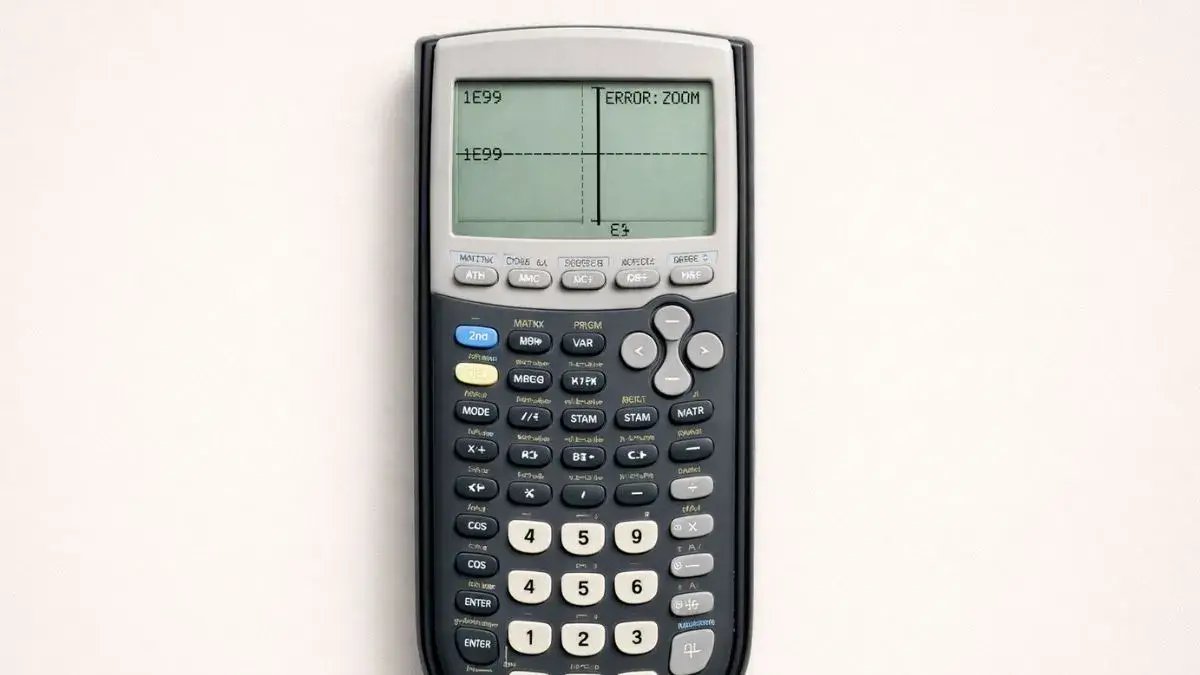
Many students believe their TI 84 calculator is giving wrong answers. In reality, most problems are caused by simple setup or input mistakes. Incorrect mode settings, graph window errors, or equation formatting issues often lead to confusing results.
Understanding common TI 84 calculator mistakes helps students avoid unnecessary frustration. In this, you will learn the most frequent errors and how to fix them step by step.
What You Need Before Starting
Before troubleshooting your calculator, confirm the following:
TI 84 Calculator Compatibility
These solutions apply to:
- TI 84
- TI 84 Plus
- TI 84 Plus CE
All models share similar menus and error causes.
Basic Troubleshooting Checklist
Before assuming something is wrong, check:
- Is the calculator in Function mode?
- Are equations entered correctly?
- Is the graph window set properly?
- Are you using the correct angle mode?
Most problems are solved by checking these settings.
How to Use the TI-84 Calculator Correctly
The TI 84 graphing calculator relies on correct:
- Mode settings
- Equation formatting
- Graph window configuration
- Memory management
When one of these is incorrect, results may appear unusual. Learning how to verify settings quickly helps maintain accuracy.
Most Common TI 84 Calculator Mistakes
Wrong Angle Mode (Degree vs Radian)
Problem:
Trigonometry answers look incorrect.
Why It Happens:
Calculator is set to Radian mode instead of Degree.
How to Fix:
- Press MODE
- Select Degree
- Press ENTER
- Press CLEAR
This resolves most trigonometry errors.
Graph Not Appearing
Problem:
No graph shows on the screen.
Why It Happens:
Graph window settings are incorrect.
How to Fix:
- Press ZOOM
- Select 6:ZStandard
This resets the viewing window.
Equation Entered Incorrectly
Problem:
Unexpected or incorrect answers.
Why It Happens:
Missing parentheses or incorrect exponent entry.
How to Fix:
- Use parentheses for grouped expressions
- Use the correct exponent key
- Recheck the equation carefully
Multiple Equations Active
Problem:
Overlapping graphs cause confusion.
Why It Happens:
Old equations are still turned on.
How to Fix:
- Press Y=
- Turn off unused equations
Scientific Notation Display
Problem:
Answers appear in unusual scientific form.
Why It Happens:
Display mode set to scientific.
How to Fix:
- Press MODE
- Select Normal
- Press ENTER
Memory Full Error
Problem:
Calculator displays memory warnings.
Why It Happens:
Too much stored data.
How to Fix:
- Press 2nd
- Press + (MEM)
- Manage or delete stored items
Using the Online TI-84 Tool
If you are unsure whether the issue is your settings or your equation, you can test it using the TI 84 Calculator Tool available on this website.
The online tool allows you to:
- Enter equations fresh
- Test graph behavior
- Compare results
- Avoid memory conflicts
Most TI 84 calculator mistakes are caused by simple setup issues rather than complex technical problems. Checking angle mode, graph window settings, and equation formatting resolves the majority of errors. By learning common troubleshooting steps, students can confidently fix problems and continue solving math questions accurately.
- How to Reset TI 84 Calculator Settings Safely
- How to Adjust Graph Window on TI 84 Calculator
- Understanding TI 84 Calculator Modes and Functions
Check the mode menu and confirm degree or radian settings.
No. First check mode, equation format, and graph window settings.
The graph window range may be too large or too small.
This usually happens due to incorrect mode settings or equation entry.











1 thought on “Common TI 84 Calculator Mistakes and Fixes”