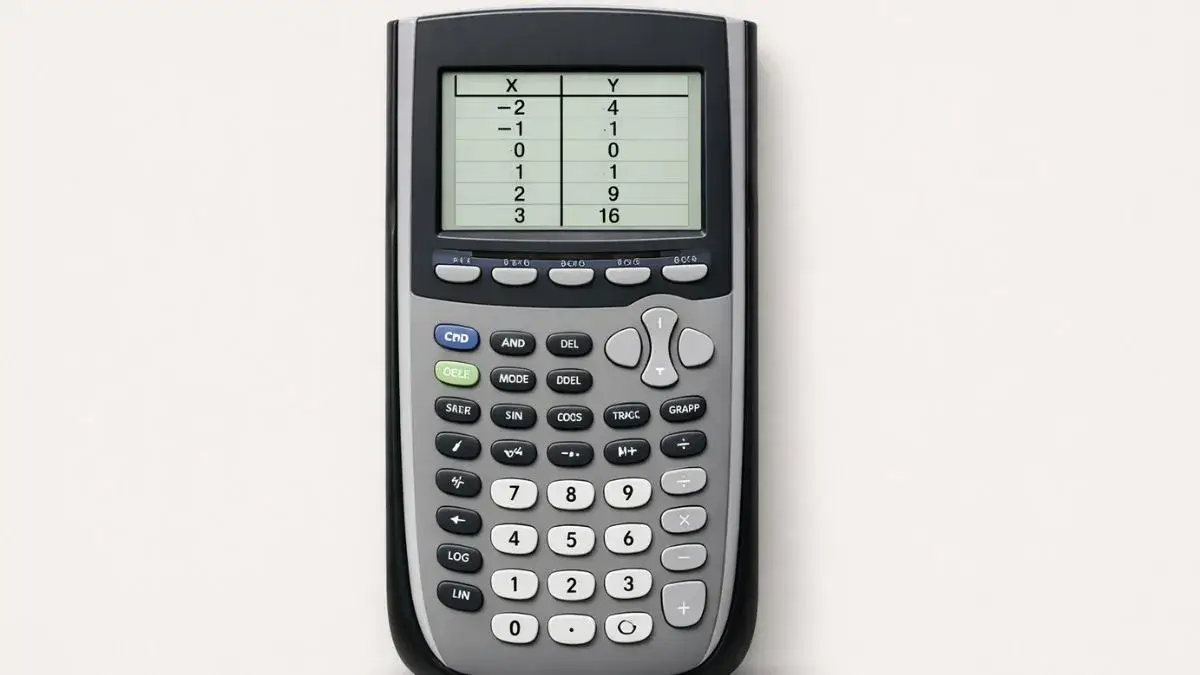
The table feature lists exact x and y values for any equation stored in Y=. Press 2nd + WINDOW (TBLSET) to set where the table starts and how big each step is, then 2nd + GRAPH (TABLE) to view it.
Does this apply to your TI-84?
Yes, TI-84, TI-84 Plus, and TI-84 Plus CE all use the same TBLSET and TABLE screens and the same field names (TblStart, ΔTbl, Indpnt, Depend).
What should be set up before I open the table?
Two things. The calculator should be in Function mode (MODE, then select Func), and at least one equation needs to be entered in the Y= screen. An equation typed only on the home screen calculates once but is never stored, so the table has nothing to build from. The Enter Equations guide covers this in detail.
How do I build a table, step by step?
This example uses y = x².
- Enter the function. Press Y=, type
X^2in Y1, and press ENTER. - Open table settings. Press 2nd, then WINDOW (TBLSET).
- Set the start and step. Set TblStart = 0 and ΔTbl = 1, so the table starts at x = 0 and counts up by 1. Leave Indpnt and Depend on Auto.
- View the table. Press 2nd, then GRAPH (TABLE). You should see x = 0 → y = 0, x = 1 → y = 1, x = 2 → y = 4, x = 3 → y = 9.
- Scroll. Use the up and down arrow keys to see earlier or later rows.
What do the four TBLSET fields actually control?
- TblStart is the first x-value shown.
- ΔTbl is the step between rows (0.5 makes the table count by halves).
- Indpnt set to Auto generates the x-values for you. Set to Ask, you type each x-value yourself and TblStart and ΔTbl are ignored.
- Depend should stay on Auto so y-values fill in on their own.
How do I read the results?
Each row pairs an x-value with the y-value the function produces. Watching how the y-column changes is the point: for y = x² the values grow faster the further you get from 0, which is exactly what a parabola does on a graph. Linear functions change by the same amount every row.
Common mistakes and how to fix them
The table is empty or has no values. No equation is stored in Y=. Enter it there, and make sure its equals sign is highlighted (turn it on if it isn’t).
Some rows say ERROR. The function isn’t defined at that x-value, such as dividing by zero or taking the square root of a negative. Scroll past those rows; the rest of the table is fine.
The y-values jump too fast. ΔTbl is too large. Reduce it (try 0.5 or 0.1) to see finer detail.
The table starts at the wrong x-value. Check TblStart in TBLSET. With Indpnt on Auto, the table always starts there.
I can’t type my own x-values. Indpnt is on Auto. Switch it to Ask in TBLSET.
Can I see the graph and the table together?
Yes. Press MODE, move to G-T on the screen-layout row, and press ENTER. Pressing GRAPH then shows both side by side, which is useful for confirming a point on the curve against its table value. See the modes guide for the other layouts.
Can the table help me set a graph window?
It’s one of the fastest ways. Scroll through a few rows, note the smallest and largest y-values, and use them to choose Ymin and Ymax. The graph window guide walks through the rest.
Practice with the online tool
The TI-84 Calculator Tool on this site lets you enter functions, view tables instantly, and compare value patterns without a physical calculator.
FAQ
How do I see specific x-values instead of a fixed step?
Set Indpnt to Ask in TBLSET (2nd + WINDOW), open TABLE, and type each x-value you want.
Can the table show more than one function?
Yes. Every active equation in Y1 through Y9 gets its own column. Press the right arrow on the TABLE screen to scroll across.
Why does my table start at a value I didn’t choose?
TblStart in TBLSET controls the first row when Indpnt is on Auto. It doesn’t follow the graph window.
Does the table work in Radian and Degree mode?
Yes, but trig functions give different values depending on the angle mode, so check MODE first if your sine or cosine rows look wrong.











3 thoughts on “How to Use Table Feature on TI-84 Calculator”