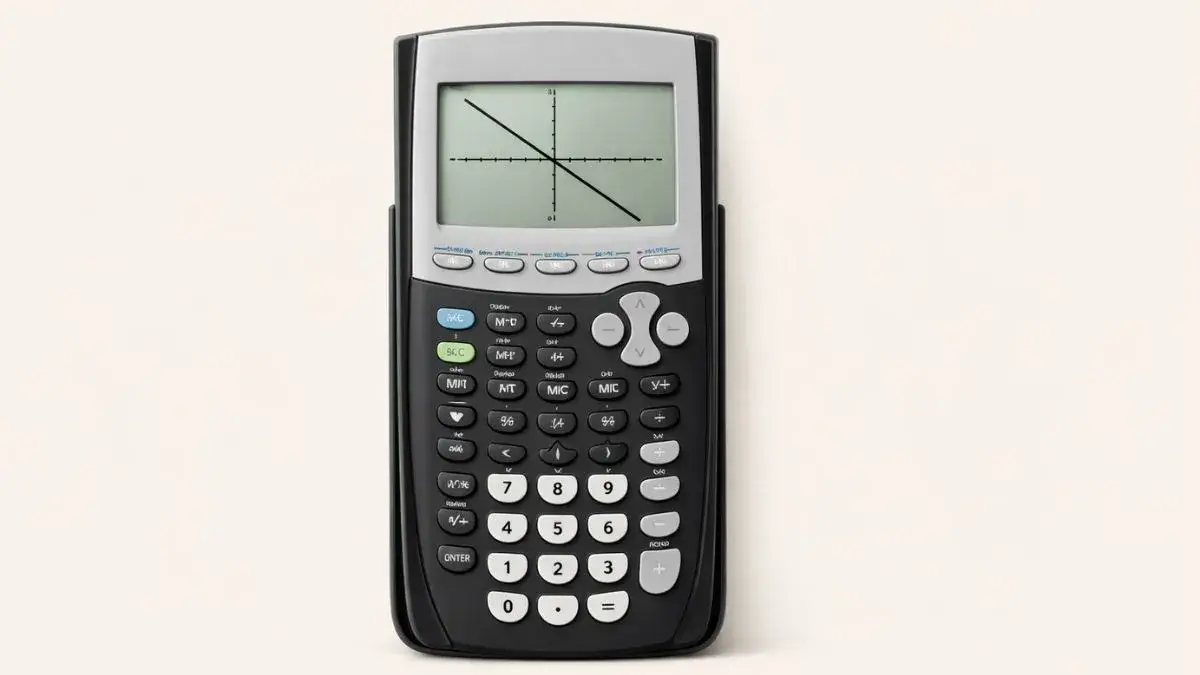
Most guides to solving linear equations on a TI-84 show one method: rearrange to y = 0, graph it, find the zero. That works, but it also means doing algebra by hand first which is exactly the step a calculator should be able to skip. Here are three ways to solve a linear equation on a TI-84, including two that don’t require rearranging anything first.
Does this apply to your TI-84?
Yes, TI-84, TI-84 Plus, and TI-84 Plus CE all support every method below.
Method 1: Rearrange, graph, and find the zero
This is the standard approach, best when the equation is already close to y = form or you want to see it visually.
Example: solve 2x + 4 = 0
- Confirm it’s already in the form (right side is 0)
- Press Y= and enter
2X+4next to Y₁ see equation entry syntax if anything looks unfamiliar - Press GRAPH
- Press 2nd, then TRACE, to open CALC, and select 2: zero
- Set a left bound and right bound on either side of where the line crosses the x-axis, then a guess
- The x-value shown is your solution
Method 2: Graph both sides and find the intersection (no rearranging needed)
This is the method most guides skip, and it’s genuinely more useful for real homework equations, which usually aren’t already set to zero.
Example: solve 3x − 5 = x + 7
- Press Y=
- Enter the left side as Y₁:
3X-5 - Enter the right side as Y₂:
X+7 - Press GRAPH
- Press 2nd, then TRACE, and select 5: intersect
- Confirm each curve when prompted (press ENTER on Y₁, then ENTER on Y₂), then set a guess near the crossing point
The x-value at the intersection is the solution this works no matter which side the variable terms and constants end up on, since you never have to combine or move anything by hand first.
Method 3: Solve algebraically with the Numeric Solver (no graph at all)
If you don’t need a visual and just want the value, the Solver skips graphing entirely.
- Press MATH, scroll to the bottom, and select B: Numeric Solver (on older OS versions, this may appear as 0: Solver)
- Enter the equation in the form it asks for (often as
expression = 0, so you may need one quick rearrangement depending on your OS version) - Move the cursor to the X= line
- Press ALPHA, then ENTER (SOLVE)
- The solved value for X appears on that line
This method is fastest when you have several equations to solve in a row and don’t need to see them graphed.
How do I check that my solution is correct?
Store the value back into X and evaluate the original equation on the home screen:
- Type your solution, then STO→, then X,T,θ,n, then ENTER
- Type the original expression and press ENTER
If both sides of the original equation match, the solution is confirmed.
Common mistakes and how to fix them
Rearranging incorrectly before graphing. A sign error while moving terms produces a confidently wrong graph. Method 2 (graphing both sides separately and using intersect) avoids this risk entirely, since nothing needs to be rearranged.
Placing the zero/intersect bounds too far from the actual crossing point. If there’s more than one x-intercept or intersection visible on screen, loose bounds can find the wrong one. Zoom in or tighten the left/right bounds around the specific point you want.
Forgetting which Solver format your OS expects. Older TI-84 OS versions use a slightly different Solver layout than newer ones. If Method 3 doesn’t behave as described, try a full mode and settings check first an OS update can shift menu structure slightly.
Practice before it counts
The TI-84 Calculator Tool on this site supports both the graphing and intersection methods, which makes it a good place to compare Method 1 and Method 2 side by side on the same equation until the difference clicks.
FAQ
Do I have to rearrange a linear equation to y = 0 before solving it on a TI-84?
No, you can graph each side of the equation separately (as Y1 and Y2) and use the intersect tool under CALC to find where they cross, without rearranging anything.
What’s the fastest way to solve a linear equation without graphing?
The Numeric Solver (MATH, then Numeric Solver or 0:Solver depending on OS version) solves directly for a variable without needing a graph at all.
Why did my zero/intersect method find the wrong point?
This usually means the left and right bounds you set were too wide and captured a different crossing point. Narrow the bounds so they sit close to the specific intersection or zero you want.
How do I check if my TI-84 solution is actually correct?
Store the solved value into X (STO→, then X,T,θ,n, then ENTER), then re-enter the original expression on the home screen if it evaluates correctly, the solution checks out.
Can these methods solve equations with variables on both sides?
Yes, that’s exactly what Method 2 (graphing both sides and finding the intersection) is best for, since it doesn’t require combining like terms first.











3 thoughts on “How to Solve Linear Equations on TI-84 Calculator”