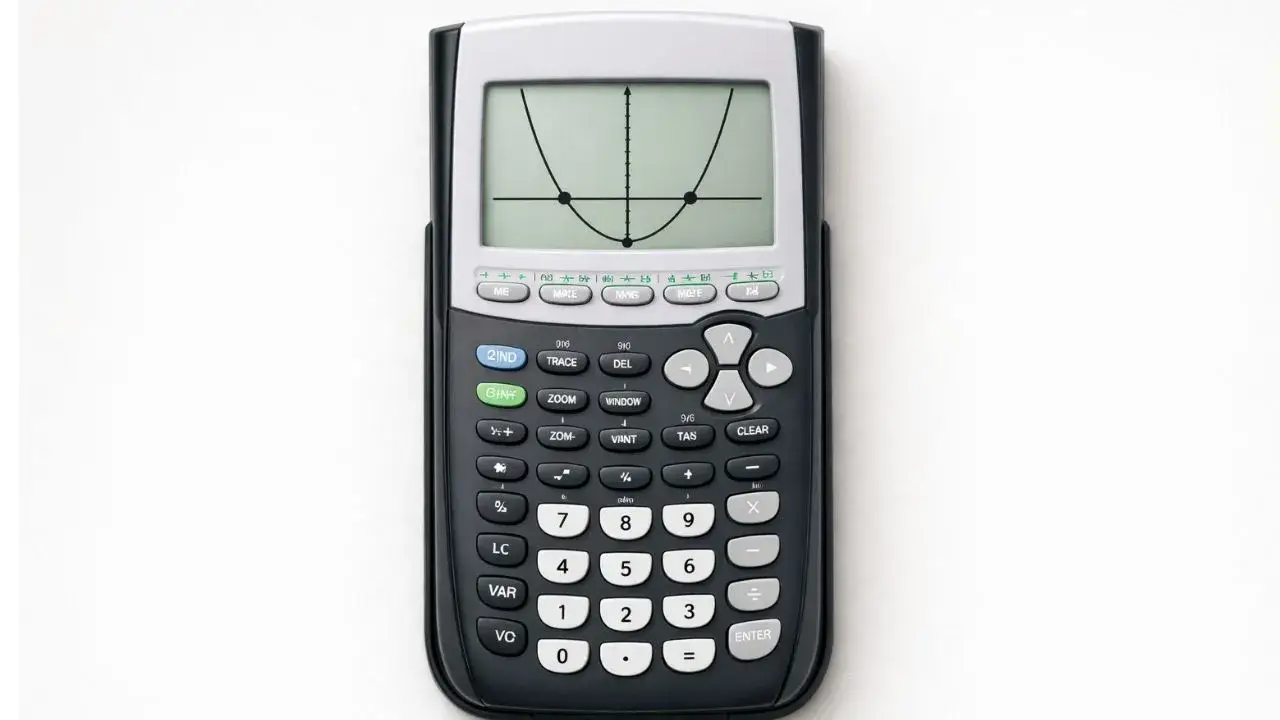
Quadratic equations often feel more difficult than linear equations because they involve curves instead of straight lines. Many students struggle to solve quadratic equations on a TI 84 calculator tool, even when they understand the math concept. Common problems include entering the equation incorrectly, not knowing how to find solutions on the graph, or misinterpreting calculator results.
These issues usually happen because quadratic equations behave differently than linear ones, and students are unsure how the calculator represents solutions. In this guide, you will learn how to solve quadratic equations on a TI 84 calculator step by step, using clear methods that students and teachers can trust.
What You Need Before Starting
Before solving quadratic equations, make sure the calculator is ready.
TI 84 Calculator Compatibility
This guide applies to:
- TI 84
- TI 84 Plus
- TI 84 Plus CE
All these models handle quadratic equations in the same way.
Required Calculator Settings
Before starting:
- Calculator must be in Function mode
- Angle mode should be set correctly
- Old equations should be cleared if not needed
Correct settings help ensure accurate graph results.
Math Prerequisites
You should understand:
- Quadratic equations in the form ax² + bx + c = 0
- Basic graph interpretation
- Meaning of x-values and y-values
No advanced algebra techniques are required.
How to Use the TI-84 Calculator
The TI 84 calculator solves quadratic equations by displaying them as graphs. When a quadratic equation is entered correctly, the calculator shows a curved graph called a parabola. The solutions to the equation appear where the graph crosses the x-axis.
Understanding how to switch between equation entry, graph mode, and result interpretation helps students solve quadratic equations confidently and accurately.
Step-by-Step Solution Using TI 84
We will solve the following example:
x² − 5x + 6 = 0
Step 1: Rewrite the Equation
- Ensure the equation is set equal to zero
- The equation is already in correct form
This format is required for solving using graphs.
Step 2: Enter the Equation
- Press Y=
- Enter:
X^2 - 5X + 6next to Y₁ - Press ENTER
The equation is now stored.
Step 3: Graph the Equation
- Press GRAPH
- A curved graph (parabola) should appear
If the graph is not visible, reset the graph window.
Step 4: Find the Solutions (Zeros)
- Press 2nd → TRACE
- Select 2:Zero
- Move the cursor to the left of the first x-intercept and press ENTER
- Move to the right of the intercept and press ENTER
- Press ENTER again to confirm
The calculator displays the x-value solution.
Step 5: Find the Second Solution
- Repeat the zero-finding steps for the other intercept
Quadratic equations usually have two solutions.
Step 6: Interpret the Results
- The x-values where the graph crosses the x-axis are the solutions
- These values satisfy the original equation
Understanding this helps connect graphs with algebra.
Common Mistakes and How to Fix Them
Mistake 1: Equation Entered Incorrectly
Why it happens:
Students forget the squared term or use the wrong key.
Fix:
Use the X² key or exponent key correctly.
Mistake 2: Missing One Solution
Why it happens:
Students find only one x-intercept.
Fix:
Check both sides of the parabola for intercepts.
Mistake 3: Graph Not Visible
Why it happens:
The graph window is not set correctly.
Fix:
Reset the window to standard view.
Using the Online TI-84 Tool
The same steps can be practiced using the TI 84 Calculator Tool available on this website. The online tool allows students to enter quadratic equations, view parabolic graphs, and find solutions accurately without needing a physical calculator.
- How to Solve Linear Equations on TI 84 Calculator
- How to Use Graph Mode on TI 84 Calculator
- How to Read Graph Results on TI 84 Calculator
Graphing is the clearest method for beginners, especially for visual learning.
Most quadratic equations have two solutions, shown as two x-intercepts on the graph.
This means the equation has no real solutions.











1 thought on “How to Solve Quadratic Equations on TI 84 Calculator”